SchemaWP 1.3.0 adds the Remote Library — a way to run SchemaWP across several WordPress sites, sharing ACSS kits from one central site to the sites you manage.
The three modes
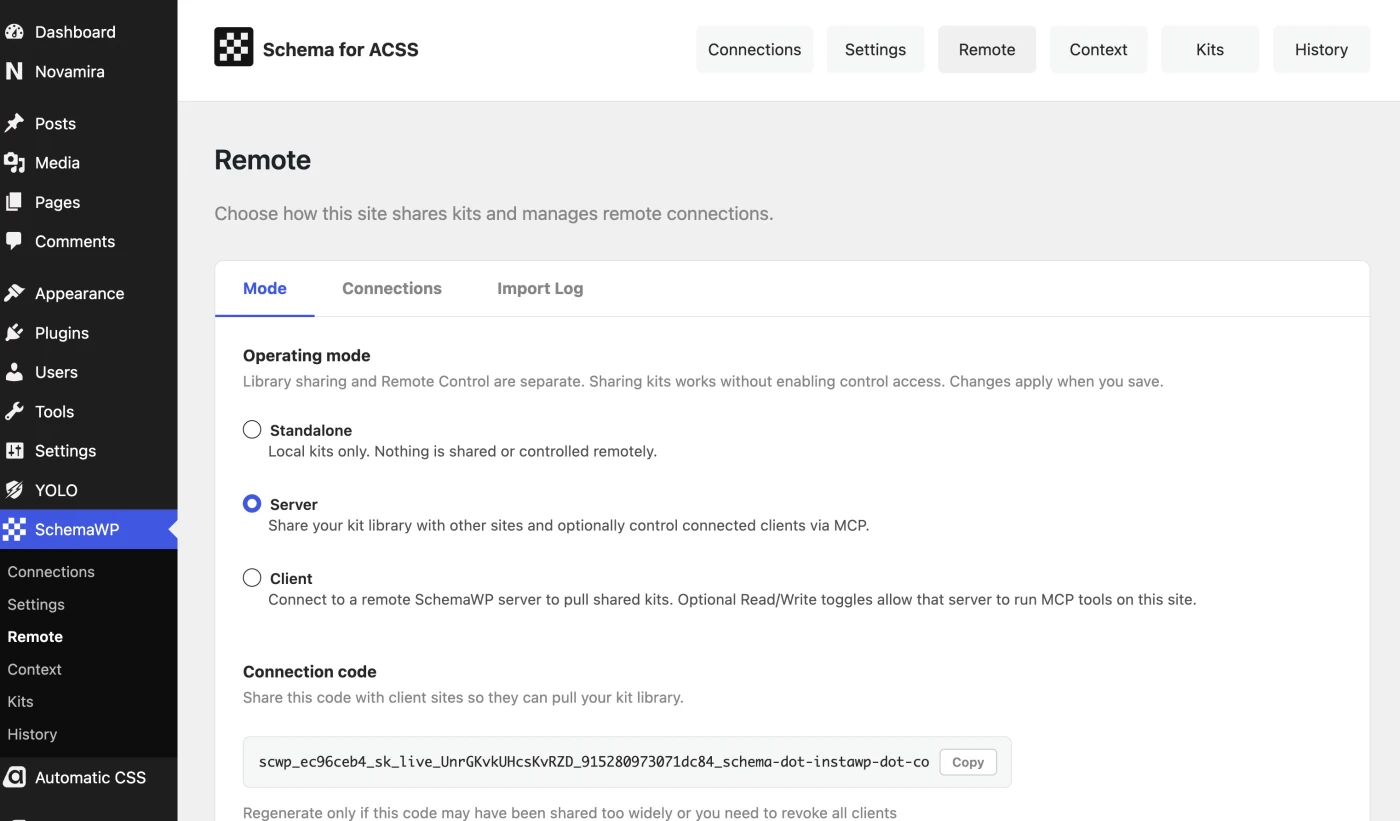
Every SchemaWP install runs in one of three modes, set under SchemaWP → Remote → Mode:
- Standalone — the default. No remote connections; SchemaWP works only on this site.
- Server — shares this site’s kits with connected client sites.
- Client — pulls kits from one or more connected servers into its local library.
A typical agency setup is one Server site — your primary site, where design decisions are made — and many Client sites you build for customers.
Kits move in one direction: clients pull from servers. A server never pushes a kit into a client. This is deliberate — a client site always decides what enters its own library.
Requirements
- SchemaWP 1.3.0 or later, and an active Automatic.css install, on both sites
- WordPress 6.7 or later
- HTTPS on both sites. Private, loopback, and local addresses are rejected — see Local development below
- An administrator account on both sites
Setting up the server
On the site that will share kits:
- Go to SchemaWP → Remote.
- On the Mode tab, select Server and save.
- Copy the connection code. You will paste it into each client site.
Treat the connection code as a credential. Anyone holding it can connect a site to your server. If it leaks, regenerate it from the Connections tab — but note that regenerating invalidates every existing connection, and each client will need reconnecting with the new code.
The server also controls kit visibility — which of its kits are offered to clients at all.
Connecting a client
On each site that should receive kits:
- Go to SchemaWP → Remote.
- On the Mode tab, select Client and save.
- On the Connections tab, paste the connection code and add the connection.
The client checks the connection straight away. On success you will see Server connected and the server listed under Connected servers. If the check fails, the connection is not saved — see Troubleshooting.
Syncing and importing kits
These are two separate steps. Sync fetches the list of kits the server is sharing and caches it locally; it does not add anything to your library. Import copies one kit from that list into your local library.
- On the client site, go to SchemaWP → Remote → Connections and sync the server.
- Go to SchemaWP → Kits and open the Remote tab.
- Import the kit you want. It then appears on the Local tab.
- Apply it like any other kit.
The Local / Remote split appears everywhere kits are listed — the admin Kits screen, the Bricks builder kits library, and the Etch kits library — so a remote kit is never confused with one you built on this site.
If a kit name already exists locally, you choose what happens: Rename (the default) imports it under a new name, Skip leaves your local kit untouched, and Overwrite replaces it.
Self-hosted ACSS fonts are bundled with the kit on import, so typography arrives intact rather than falling back.
Sharing kits and remote control are separate
Connecting a client to a server lets that client pull kits. It does not give the server any control over the client. Control is granted separately, by the client, through two independent flags:
- Read — the server may run read-only operations here, such as fetching the current ACSS config or status.
- Write — the server may run operations that change this site: applying a kit, applying a patch, regenerating CSS, setting feature flags.
Both are off by default. Clients also expose per-tool toggles, so you can allow remote control in principle while disabling specific operations. Remote actions run as a designated user on the client, so History attributes them to a real account.
Managing connections
- Sync — refreshes the cached kit list from a server.
- Revoke — soft-blocks a client. Kit pulls and remote control fail until you unblock it, and the connection row is kept. Reversible.
- Unblock — reinstates a revoked client.
- Delete — permanently removes the connection. Not reversible; restoring it means pairing again with a connection code.
Revoke is the safe option when you want to cut a site off temporarily. Revoking takes effect on the server side, so a revoked client cannot pull or be controlled regardless of its own settings.
Import Log and History
Import Log (Remote → Import Log) is a dedicated record of kit imports. History (SchemaWP → History) records remote actions alongside local ones and labels a kit apply as Agent or Remote depending on where it came from. Rows that can be restored offer a Restore action.
Between the two you can answer what changed on this site, when, and who initiated it — without leaving wp-admin.
Using the Remote Library with an AI agent
Three limits are enforced in code, not by convention:
- Agents cannot create connections or change the mode. Pairing and mode-switching are administrator actions in wp-admin.
- A server cannot push a kit to a client. A client must pull it, and a server cannot trigger that pull on the client’s behalf.
- Remote operations cannot be nested. A remote call will not proxy another remote call, which prevents chained or recursive calls across sites.
In practice, the pattern for a fleet is: each client syncs and imports the shared kit once, and from then on the server drives ongoing changes across all of them in a single agent session. Applying a patch works from the server immediately and needs no prior sync, because it changes tokens rather than moving a kit.
Local development
Remote URLs must normally be HTTPS and publicly reachable. For local work, two constants relax this. Both require WP_DEBUG to be enabled or the site’s environment type to be local or development, so they have no effect on a production site.
define( 'SCWP_ALLOW_HTTP', true );  // permit http:// and private/local hosts
define( 'SCWP_SKIP_SSL', true );    // skip SSL certificate verification
Do not set these on a live site.
Troubleshooting
- “Remote site URLs must use HTTPS.” — the URL is
http://. Use HTTPS, or setSCWP_ALLOW_HTTPfor local development. - “Remote site URLs cannot target private or local hosts.” — the URL resolves to a private or local address. This is a security guard; for local development, use
SCWP_ALLOW_HTTP. - “Could not resolve the remote site host.” — DNS returned nothing. Check the hostname.
- “Request signature is invalid.” (HTTP 401) — the two sites disagree about the shared secret, usually because the server regenerated its keys after the client connected. Reconnect the client with the current code.
- The client syncs but no kits appear. — check kit visibility on the server, and confirm the client is not revoked.
- Remote control fails while syncing works. — these are separate. Check the client’s Read and Write flags and its per-tool toggles.
Every remote request is signed and timestamped, and unsigned or mis-signed requests are rejected. Remote URLs are re-validated on every use, not only when you first pair the sites.