I was consumed by the idea of self-contained design kits since 2017. Back then we created Style Kits for Elementor, where we applied the concept of portable kits with global design controls. Now many years later, we have the opportunity to re-work on the problem with tools mature enough to hold the weight of a real design system, and serve as the backbone of the workflow.
So, I’ve been thinking about this same idea for ACSS since mid-2024. Back then, I wrote about the idea of framework snapshots for ACSS which presented a way to save your entire ACSS settings configuration and restore it when needed. That exploration stayed as a Figma concept, but a couple of weeks back I started building a proof of concept.
Thoughts on design branching
When you’re deep in a design session, you make decisions that cascade through most of the parameters of your ACSS setup. A different type scale. A slightly tighter radius. A new approach to spacing. Taken by the design momentum, you’re not always limited to small tweaks only — soon you find these changes may shift the character of the whole site.
Sometimes that direction works out. Sometimes, a few hours in, you realise it doesn’t.
We need a safe way to explore. Whatever state ACSS was in before you started experimenting is gone, unless you thought to back it up manually (by copying framework settings in Import / Export). And in the middle of a design session, nobody does that.
What kits actually solve
A kit is a saved snapshot of your entire ACSS configuration. Before you branch off into an experiment, you save a kit. If the direction doesn’t work out, you restore it. If it does, you keep going.
It’s version control for your design system. Not in a complex, developer-tooling sense. Just the simple ability to go back to where you were.
The second use case is less obvious but equally useful. Over time you develop a sense of what works for different types of projects. A kit for SaaS. A kit for editorial. A kit for service businesses. You build those configurations once, save them, and load them at the start of the next relevant project.
Saving a kit
There are two ways to work with Kits.
From ACSS Sidebar: The first is directly from inside the editor. Open the ACSS sidebar and enter any panel within it. You’ll find a Save as Kit button there. Give it a name and confirm. Your current ACSS configuration is saved.
Asking the agent: The second is from your AI assistant. If you’re already working with Claude or Cursor, you can just ask the agent to create one.
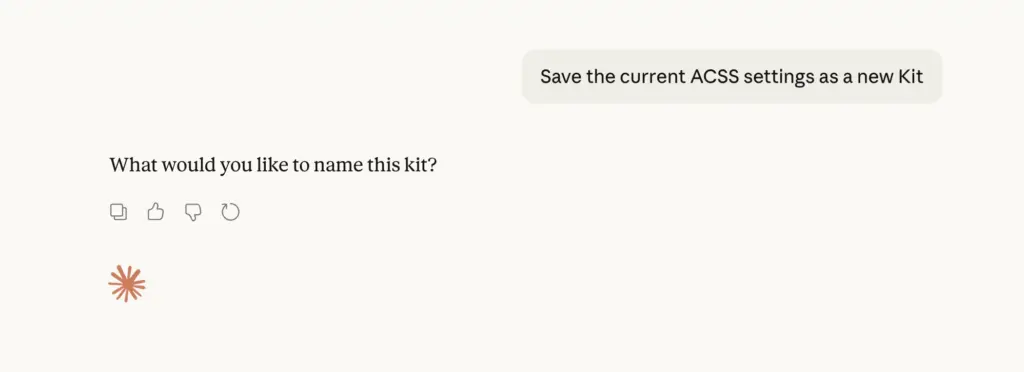
The agent handles it from there. Both routes end up in the same place: Schema → Kits in your WordPress admin, where all your saved kits live.
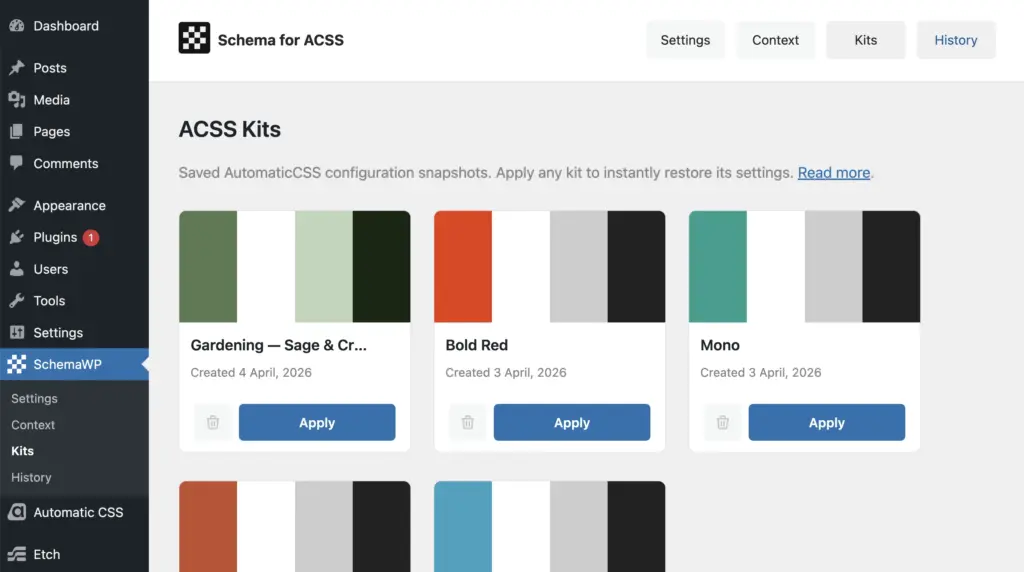
Applying a kit works the same way. Either from the Kits page in the dashboard, or by asking the agent directly. Worth noting that applying a kit overwrites the current ACSS settings, so it’s worth saving a kit before you load one, if there’s anything you don’t want to get lost.
Schema for ACSS
If you’re not familiar with it, a few days ago we released an early version of Schema for ACSS. It is a WordPress plugin that connects the ACSS framework of your website(s) to AI agents like Claude and Cursor, exposing your ACSS setup to your overall project context. Pull, push and manage ACSS styles at your live site(s), right from within your AI sessions. And we are building the context layer to facilitate this connection.
Kits are one part of what Schema makes possible, with more improvements on the way (share kits across sites / more robust UI / better agent integration and more).
If you are a freelancer or agency working with @AutomaticCSS at scale, try out Schema and let us know your thoughts. We are actively building the product, researching and optimizing daily.